RallyCross
Dirt, gravel, and glory
Timed runs on unpaved surfaces — dirt, gravel, and grass. If you like getting sideways, this is your program.
About RallyCross
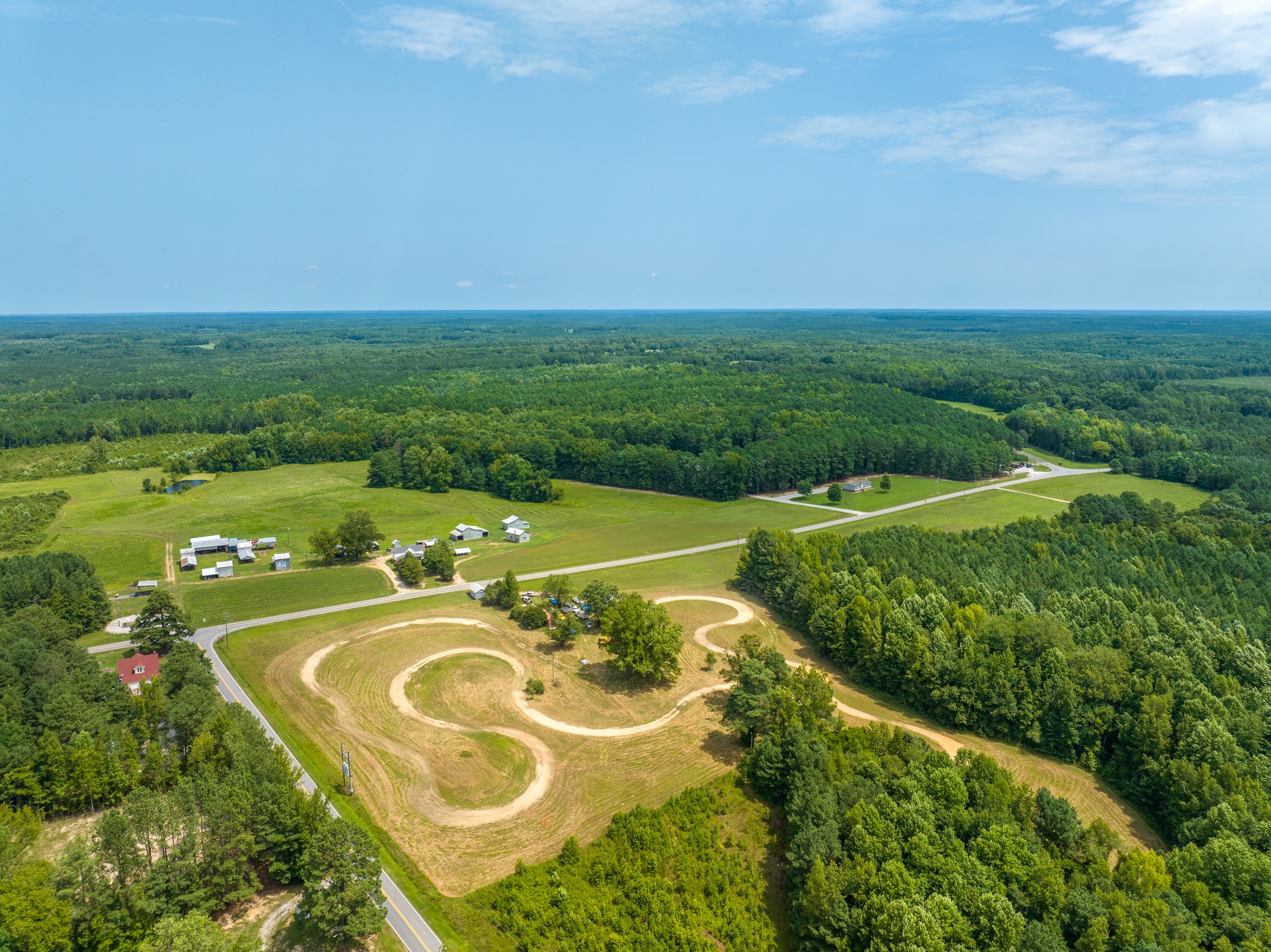
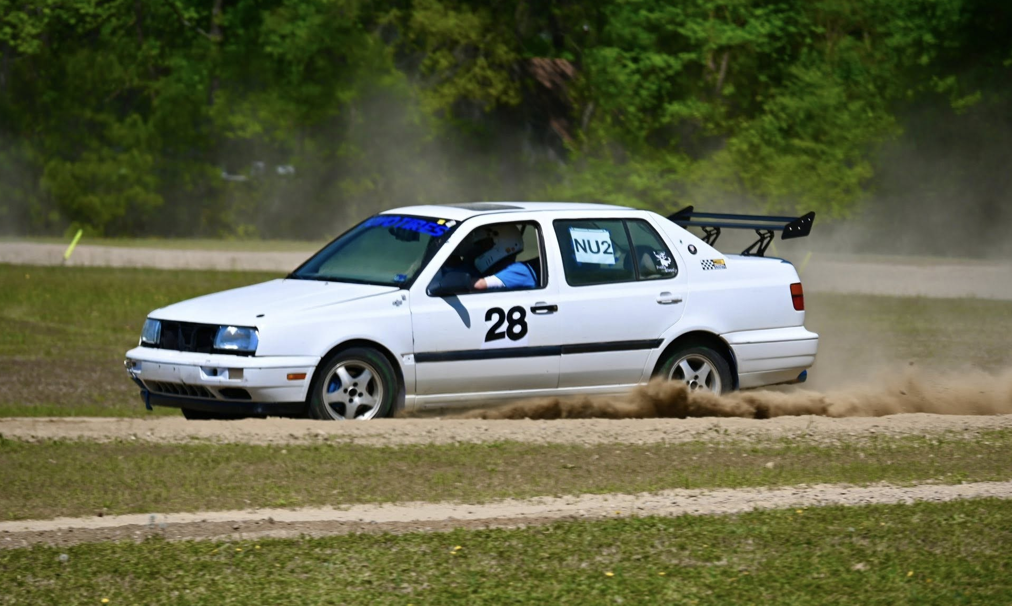
RallyCross is a thrilling, amateur motorsport that combines elements of off-road racing and autocross. RallyCross is a precision driving event during which the driver races against the clock (not against another competitor wheel-to-wheel). Unlike traditional rally racing that takes place on closed public roads, RallyCross events are held on temporary off-road courses, often set up in large fields. Tarheel Sports Car Club courses are marked with agility poles and are designed with a variety of challenging features such as dirt, grass, and elevation changes.
RallyCross does not require a navigator, nor does it require a specially prepared vehicle. RallyCross events are open to a wide range of vehicles, from everyday cars to purpose-built off-road machines, making it an accessible and inclusive motorsport for enthusiasts of all backgrounds and experience levels.
Each competitor’s final score is the sum of all their runs (including penalties). So hitting a single pole on one run adds 5 seconds of penalty to a driver’s final score. As a result RallyCross rewards a more consistent performance, and competitors going “all out” on every run take a substantial risk of incurring penalties.
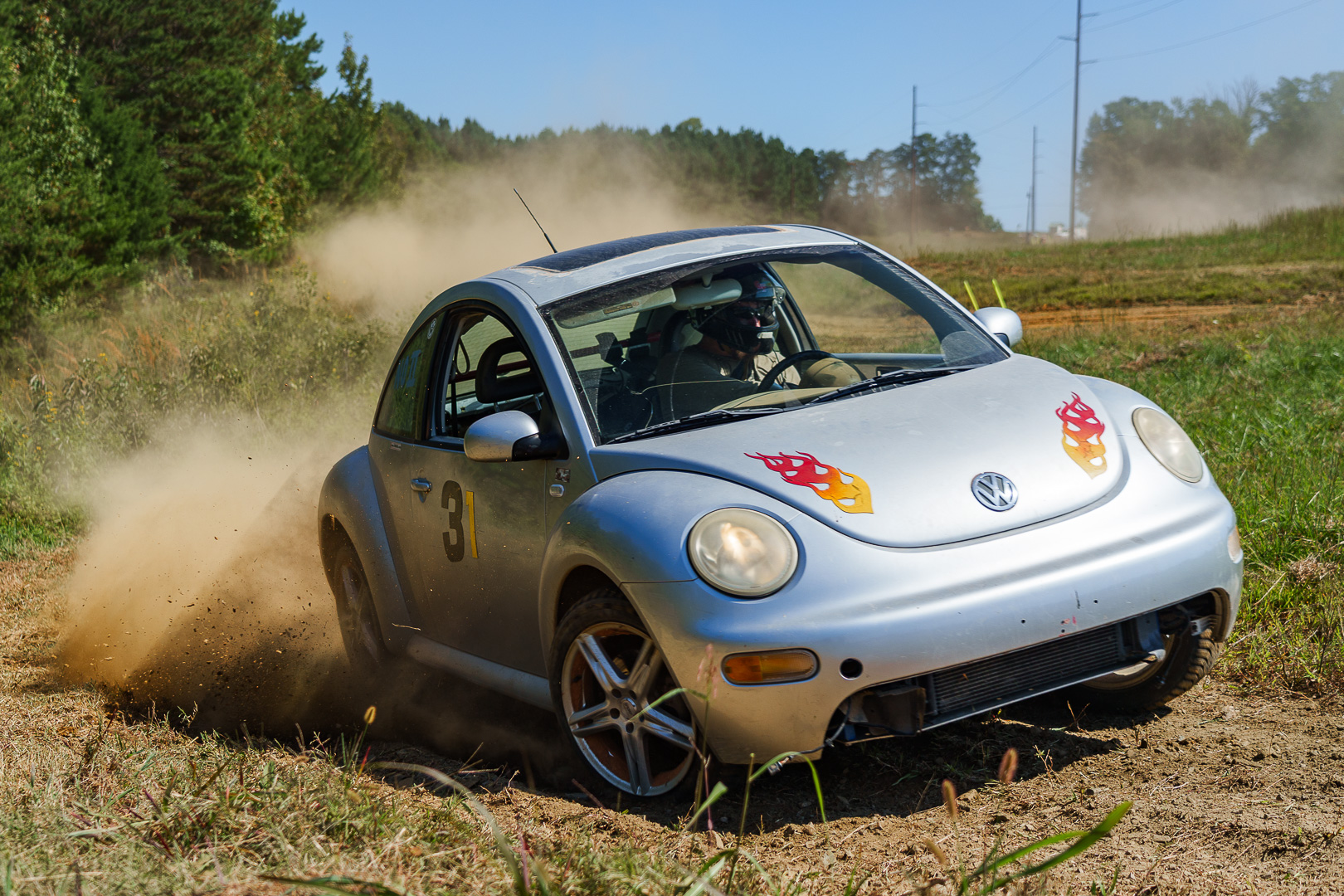
RallyCross events emphasize fun, skill, and camaraderie, making it a popular choice for motorsport enthusiasts looking to experience off-road racing without the high costs associated with other forms of rally racing. The lower traction on a RallyCross course allows (and even encourages) competitors to carry slides through corners. It’s quite addictive!
RallyCross events provide an opportunity for drivers to hone their car control skills, learn about vehicle dynamics, and experience the thrill of off-road racing in a safe and controlled environment. It’s a great way for motorsport enthusiasts to get involved in competitive racing without the need for specialized rally cars or extensive modifications.
RallyCross is becoming very popular now in the U.S. and THSCC has a full season of events scheduled. We have several RallyCross sites available to us, but we can always use more! If you or anyone you know has some vacant farmland or fields, please contact our Rallycross VPs with details.
For all other questions or concerns, email rallycross@thscc.com.
New to RallyCross?
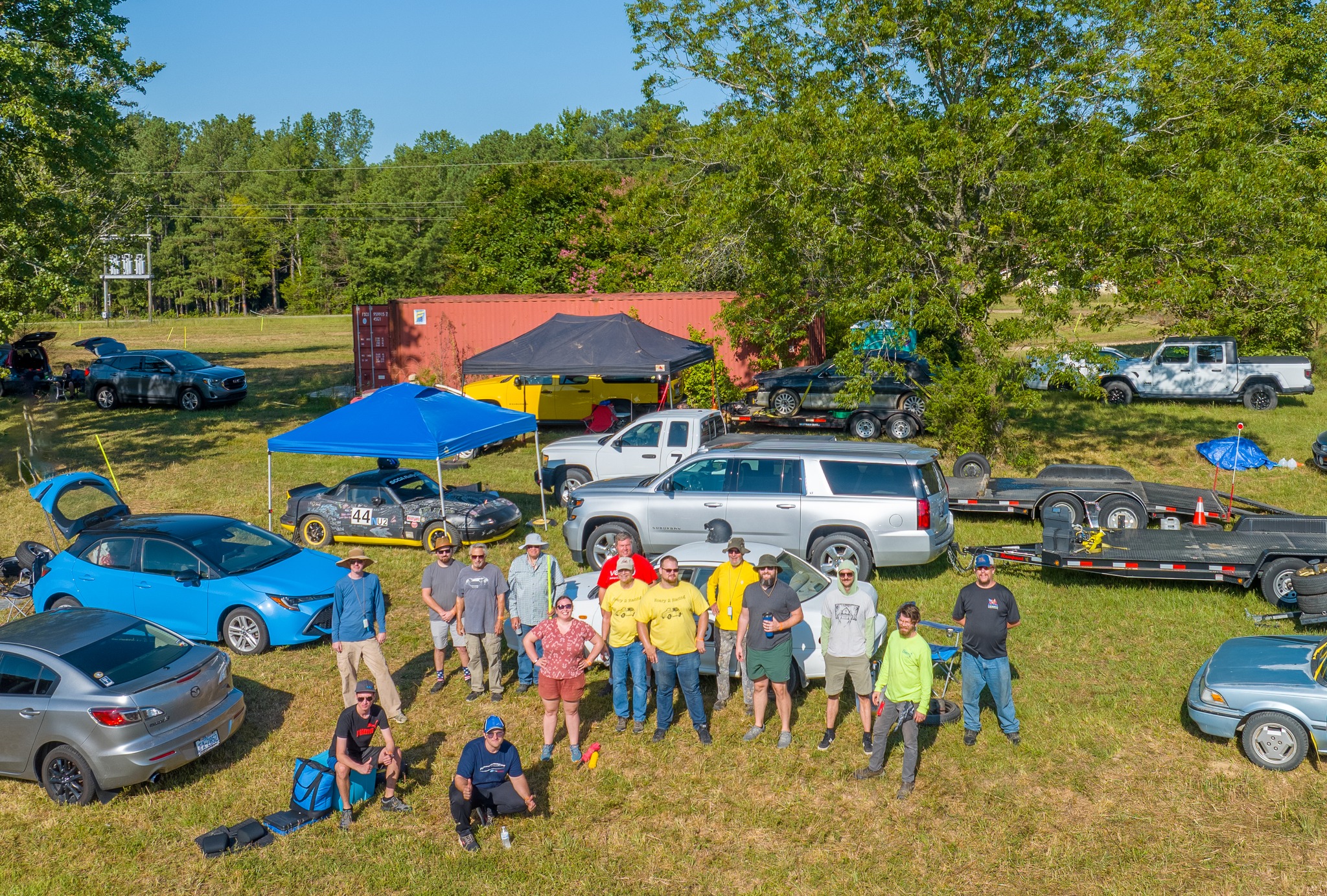
If this is your first time, welcome! No prior experience is needed. Our community will walk you through everything from registration to your first run. Join our Discord and introduce yourself — someone will be happy to help you get started.
Upcoming Events
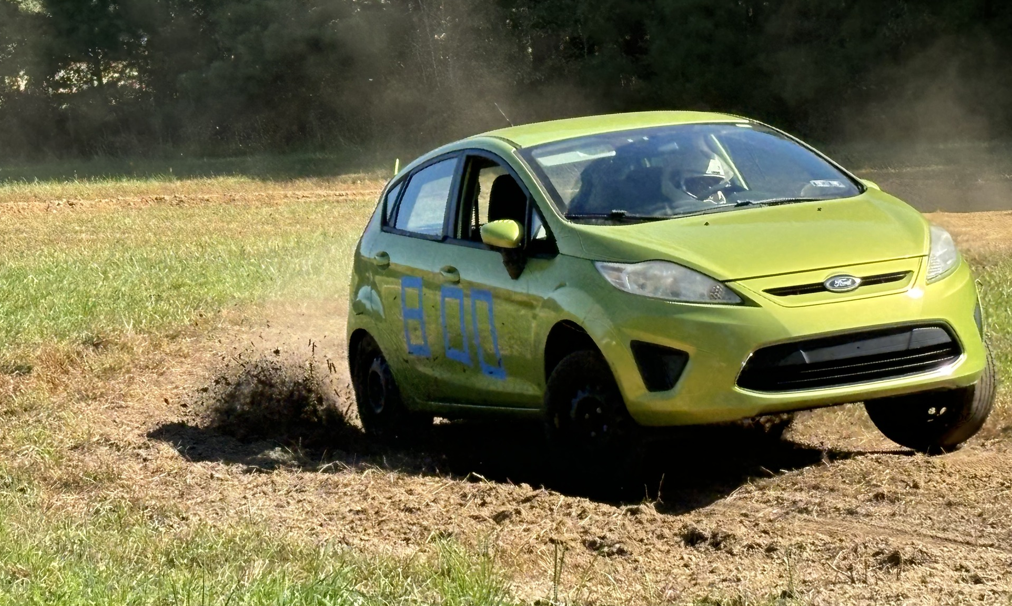
THSCC RallyCross Louisburg Points Events #6 & #7
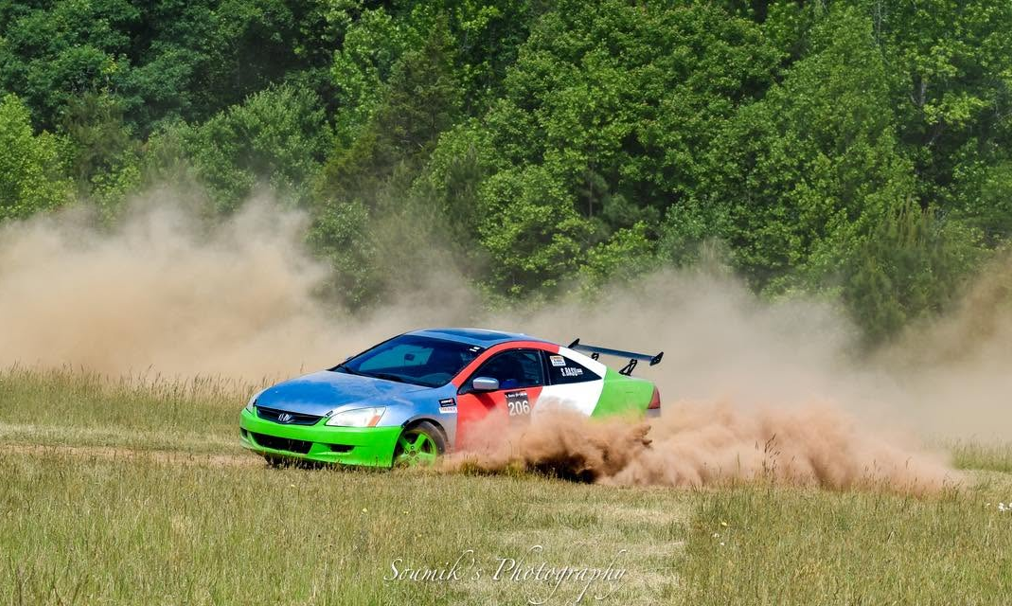
THSCC RallyCross Yanceyville Points Event #8 & #9

THSCC RallyCross Wilson Points Event #10